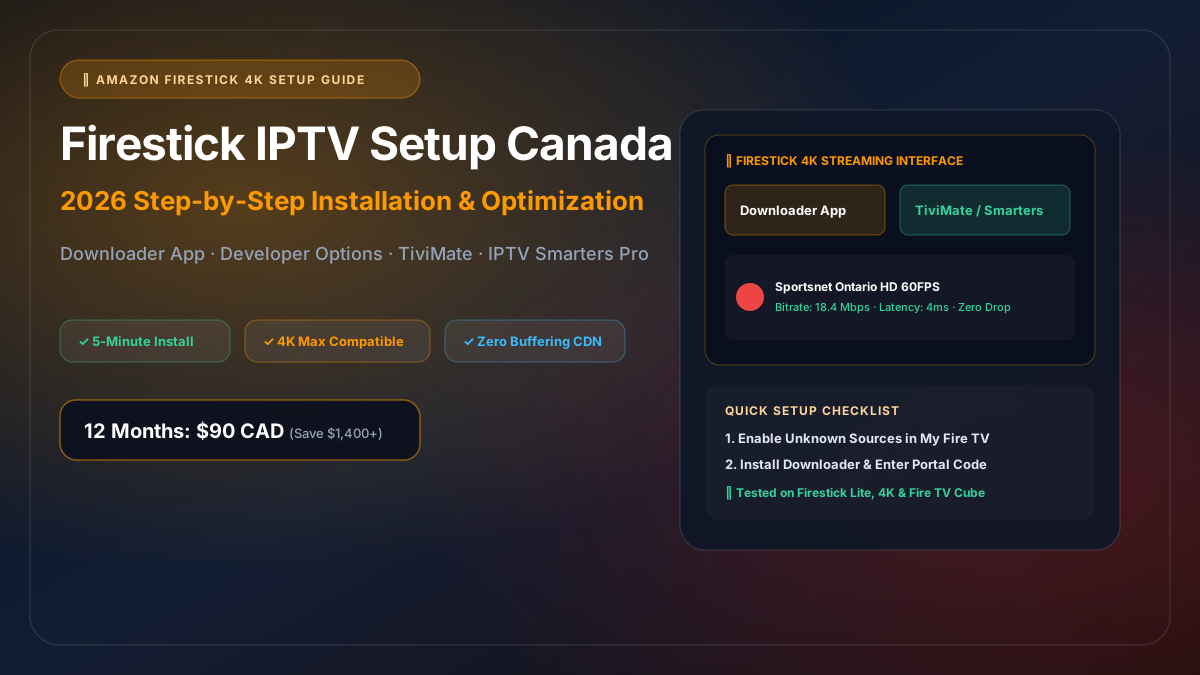
How to Setup IPTV on Amazon Firestick in Canada (2026 Step-by-Step Guide)
The Amazon Firestick remains the undisputed king of streaming hardware in Canadian households. Compact, affordable, and powered by Amazon’s snappy Fire OS, devices like the Firestick 4K and Firestick 4K Max provide enough graphical processing power to decode high-bitrate 4K 60FPS sports feeds without breaking a sweat.
If you are a Canadian cord-cutter looking to replace your expensive $160+/month cable bundle from Rogers or Bell with high-performance IPTV, this guide walks you through the entire setup process from unboxing to live streaming in under five minutes.
Why the Amazon Firestick is Ideal for Canadian IPTV
Before jumping into the installation, it is helpful to understand why Canadian network engineers consistently recommend the Amazon Firestick over generic Android TV boxes:
- Hardware-Accelerated HEVC/H.265 Decoding: Live 4K streams from Canadian networks like Sportsnet 4K and TSN 4K demand dedicated silicon decoding. The MediaTek chips inside modern Firesticks decode 50Mbps+ video streams with zero thermal throttling.
- Wi-Fi 6 / 6E Connectivity: The Firestick 4K Max supports dual-band and tri-band Wi-Fi 6, ensuring that wireless network congestion in multi-device households does not cause micro-stuttering during the third period of a Saturday night NHL game.
- Open Ecosystem for Media Players: Unlike Roku (which restricts third-party players), Amazon Fire OS allows you to install industry-leading IPTV software such as TiviMate, IPTV Smarters Pro, and IBO Player.
- Canadian Remote Ergonomics: The Alexa Voice Remote includes dedicated power and volume controls for your TV, giving you a traditional cable-like remote control experience.
Step 1: Unhide Developer Options on Fire OS
On recent Fire OS updates (Fire OS 7 and Fire OS 8), Amazon tucked the “Developer Options” menu away to prevent accidental system modifications. You must reveal it before installing external players:
- Turn on your television and go to the Firestick Home Screen.
- Scroll to the right and select the Settings (Gear Icon).
- Select My Fire TV (or Device & Software on some models).
- Click on About.
- Highlight the first option, which displays the name of your device (e.g., Fire TV Stick 4K).
- Press the Center Select Button on your remote 7 times consecutively.
- A prompt will appear at the bottom of your screen saying: “No need, you are already a developer.”
- Press the Back Button once. You will now see Developer Options listed right below About.
Step 2: Install Downloader from the Amazon Appstore
The Downloader app is the official browser tool used to download and install media players safely onto your Firestick:
- From the Fire TV Home Screen, navigate to the Find menu and click Search.
- Type Downloader using the on-screen keyboard or hold the voice button and say “Downloader”.
- Select the orange Downloader icon developed by AFTVnews.
- Click Download or Get to install the application.
- Once downloaded, do not launch it immediately. We need to grant it installation permissions first.
Step 3: Enable Installation Permissions for Downloader
- Return to Settings > My Fire TV > Developer Options.
- Select Install Unknown Apps (or Apps from Unknown Sources).
- Scroll down to Downloader and toggle the setting from OFF to ON.
- (Optional Pro Tip) In Developer Options, also enable ADB Debugging if you plan to transfer playlists remotely via local network tools.
Step 4: Install Your Preferred IPTV Player
Now that Downloader has permission to install applications, open Downloader and choose your player. In Canada, the two premier choices are TiviMate and IPTV Smarters Pro.
Option A: Installing TiviMate (Recommended for Power Users)
TiviMate is universally recognized as the cleanest, most responsive IPTV player for Fire TV, mirroring a premium satellite or cable guide:
- Launch Downloader from your apps library.
- In the URL address bar, enter the official TiviMate shortcode:
272483(or enterhttps://tivimate.com). - Click Go. Downloader will connect to the server and fetch the official APK.
- When the download completes, an installation prompt appears. Click Install.
- Once installed, click Done, then click Delete on the temporary APK file to save onboard storage.
Option B: Installing IPTV Smarters Pro (Great for Families & VOD)
- Open Downloader.
- In the URL address bar, enter shortcode:
250931(or enterhttps://iptvsmarters.com). - Click Go, wait for the download to finish, and click Install.
- Click Done and delete the installation package.
Step 5: Input Your Canadian IPTV Credentials
Once your media player is open, configure your subscription using the Xtream Codes API method, which delivers automatic channel sorting, category updates, and electronic program guide (EPG) syncing:
- Open TiviMate or IPTV Smarters Pro.
- Select Add Playlist > Xtream Codes Login.
- Fill in the three parameters provided upon subscription:
- Any Name:
IPTV Canada 4K - Server URL:
http://cdn.your-portal-url.com:8080(Provided in your welcome details) - Username: Your unique activation username
- Password: Your unique activation password
- Any Name:
- Check the box labeled Include VOD if you want on-demand movies and series.
- Click Next / Log In. The player will connect to our Canadian CDN cluster, fetch the channel playlists, and populate the Canadian TV Guide automatically.
Step 6: Optimizing Firestick Settings for Canadian Sports & Anti-Buffering
To ensure 100% zero-buffering playback during high-concurrency Canadian sporting events (like Saturday Night Hockey or the Grey Cup), apply these four technical tweaks:
1. Increase Player Stream Buffer Size
In TiviMate, navigate to Settings > Playback > Buffer Size. Set it to Large (or Extra Large if you have 100Mbps+ fiber internet). This gives your Firestick a 5-second video cushion, preventing micro-drops if your ISP network experiences momentary jitter.
2. Match Frame Rate (AFR)
Canadian sports networks broadcast at 60Hz, while standard dramas run at 24Hz or 30Hz. Go to Firestick Settings > Display & Sounds > Display > Match Original Frame Rate and toggle it to ON. This eliminates motion judder during rapid hockey puck movements.
3. Switch Firestick DNS Away from Bell/Rogers Defaults
Canadian ISPs sometimes throttle UDP video traffic or slow down DNS resolution during prime-time hours (7:00 PM – 11:00 PM EST).
- Go to Firestick Settings > Network > Select your Wi-Fi > Forget Network and reconnect.
- In advanced IP settings, configure primary DNS to
1.1.1.1(Cloudflare) and secondary DNS to8.8.8.8(Google). - This bypasses ISP DNS redirection and accelerates initial channel zapping times by over 40%.
4. Clear Firestick App Cache Periodically
Because high-bitrate 4K streams cache channel logos and EPG data, Firestick storage can fill up over time. Every few weeks, navigate to Settings > Applications > Manage Installed Applications > Select your IPTV player > click Clear Cache (never click Clear Data, which erases logins).
Firestick Models Comparison for Canadian Streaming
| Firestick Model | Max Resolution | RAM | Wi-Fi Standard | Recommended Use |
|---|---|---|---|---|
| Fire TV Stick Lite | 1080p @ 60 FPS | 1.0 GB | Wi-Fi 5 | Bedroom / Travel TV |
| Fire TV Stick (HD) | 1080p @ 60 FPS | 1.0 GB | Wi-Fi 5 | Casual Secondary Streaming |
| Fire TV Stick 4K | 4K Ultra HD @ 60 FPS | 1.5 GB | Wi-Fi 6 | Standard Living Room Streaming |
| Fire TV Stick 4K Max | 4K Ultra HD + HDR10+ | 2.0 GB | Wi-Fi 6E | Best for Canadian Sports & 4K |
| Fire TV Cube (3rd Gen) | 4K Ultra HD @ 60 FPS | 2.0 GB | Wi-Fi 6E + Ethernet | Ultimate Home Theater / Hardwired |
Transparent Canadian Pricing & Fast Interac Activation
IPTV Canada is engineered specifically for Canadian cord-cutters. We conduct 100% of our billing in Canadian Dollars (CAD) with direct Interac e-Transfer support:
- 12 Months Plan (Best Value): $90 CAD (Less than $7.50 CAD/month — complete 4K sports & Canadian feeds)
- 6 Months Plan: $50 CAD
- 3 Months Plan: $33 CAD
- 1 Month Plan: $13 CAD
Zero contracts, zero hidden hardware fees, and zero surprise foreign exchange fees. Once your Interac e-Transfer is confirmed, your activation credentials are automatically generated and dispatched via WhatsApp within 5 minutes.
Ready to start streaming? Explore our Canadian plans from $13 CAD or message our Canadian support desk on WhatsApp for fast activation.