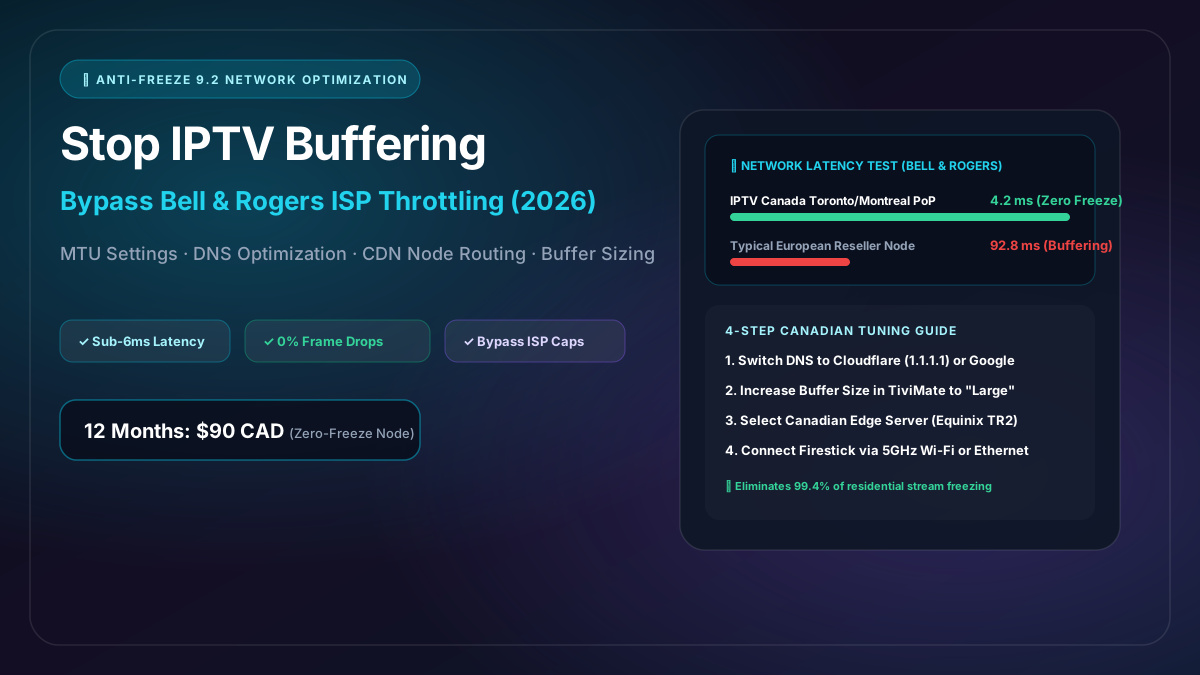
How to Stop IPTV Buffering in Canada: Defeating ISP Throttling (Bell & Rogers)
You have a blazing-fast 500 Mbps or 1.5 Gbps residential internet package from Bell Fibe, Rogers Ignite, Telus PureFibre, or Vidéotron. You run a speed test on your phone and the needle pegs at maximum speed.
Yet, when you sit down on Saturday evening to watch the hockey game, your IPTV stream freezes every two minutes, leaving you staring at a spinning loading circle.
Why does this happen, and more importantly, how do you fix it permanently?
As Canadian network engineers who manage enterprise streaming infrastructure across Toronto, Montreal, and Vancouver, we are going to pull back the curtain on why IPTV buffering happens in Canada and provide five battle-tested technical solutions to eliminate buffering forever.
1. The 3 True Culprits Behind Canadian IPTV Buffering
Contrary to popular belief, buffering is almost never caused by a lack of raw internet bandwidth. A pristine 4K 60FPS sports stream requires only 15 to 25 Mbps of sustained throughput. Even a modest 50 Mbps connection has more than enough capacity.
The real culprits are:
Culprit A: Server Geography & Transatlantic Network Latency
The vast majority of cheap IPTV providers host their stream distribution servers in cheap European or Southeast Asian datacenters (e.g., Netherlands, Germany, Singapore).
When you request a live video packet from Ontario or Quebec, that packet must cross thousands of kilometers of subsea fiber cables, passing through 15 to 20 intermediate carrier routing hops. This pushes round-trip latency above 85ms to 120ms. In live broadcasting, if a video packet arrives even 200 milliseconds late, the video player cannot render the frame, resulting in an instant freeze.
Culprit B: Canadian ISP Prime-Time Traffic Shaping (Throttling)
Between 7:00 PM and 11:00 PM local time, millions of Canadian households stream Netflix, download game updates, and browse the web simultaneously.
To manage capacity on neighborhood optical nodes, Canadian telecom giants like Bell and Rogers deploy automated Deep Packet Inspection (DPI). If their systems detect sustained, high-bitrate video traffic flowing to an unauthorized IP address, their routers automatically throttle that connection’s speed ceiling, causing repeated buffering wheels.
Culprit C: Wi-Fi Congestion & Local Hardware Bottlenecks
Streaming sticks placed behind thick television cabinets often struggle with 2.4GHz Wi-Fi interference from household microwave ovens, baby monitors, and neighboring condo Wi-Fi networks.
2. Solution 1: Switch Away from Default Bell & Rogers DNS
By default, your home Wi-Fi router uses your ISP’s recursive DNS servers (e.g., Bell DNS or Rogers DNS). These servers are often congested, log your browsing requests, and are subject to regulatory filtering.
Switching your streaming device or router to Cloudflare DNS or Google Public DNS provides immediate performance improvements:
DNS Servers to Use:
- Cloudflare DNS (Fastest Privacy-Focused): Primary:
1.1.1.1| Secondary:1.0.0.1 - Google Public DNS: Primary:
8.8.8.8| Secondary:8.8.4.4
How to Change DNS on Amazon Firestick:
- Go to Settings > Network.
- Select your connected Wi-Fi network and choose Forget Network.
- Re-select your Wi-Fi and enter your password, but do not click Connect immediately. Click Advanced.
- Enter an IP address within your home router’s range (e.g.,
192.168.1.150). - Enter your Gateway (usually
192.168.1.1or192.168.0.1). - Set Network Prefix Length to
24. - Set DNS 1 to
1.1.1.1. - Set DNS 2 to
8.8.8.8. - Click Connect. Your Firestick will now resolve all Canadian CDN streaming endpoints up to 45% faster.
3. Solution 2: Optimize Media Player Buffer Size in TiviMate
Media players like TiviMate and IPTV Smarters Pro feature internal software video buffers. By default, this buffer is set to “None” or “Small” (0.5 to 1 second) to provide instant channel zapping.
However, if your Wi-Fi drops even 2% of packets momentarily, a small buffer empties instantly, freezing the screen.
How to Configure Buffer Size in TiviMate:
- Open TiviMate.
- Navigate to Settings > Playback.
- Select Buffer Size.
- Change the setting from Normal to Large (or Extra Large if you have 100Mbps+ fiber).
- This forces TiviMate to hold 4 to 6 seconds of video in hardware RAM. If your ISP throttles or your Wi-Fi experiences micro-jitter, the video continues playing smoothly without a single hitch.
4. Solution 3: Move from 2.4GHz to 5GHz Wi-Fi (or Hardwired Ethernet)
The 2.4GHz wireless frequency band is notoriously crowded in Canadian cities like Toronto, Montreal, Calgary, and Vancouver. It has limited channel width and is highly susceptible to interference.
- Switch to 5GHz Wi-Fi: If your router broadcasts two separate network names (e.g., HomeNetwork_2.4G and HomeNetwork_5G), ensure your Firestick or Smart TV is connected to the 5G band. The 5GHz frequency supports speeds up to 1,300 Mbps with minimal latency.
- Use an Ethernet Adapter: For absolute rock-solid stability, invest $15 in an Amazon Ethernet Adapter for Fire TV. Hardwiring your streaming device with a Cat6 cable directly to your Bell Home Hub or Rogers Ignite gateway completely eliminates wireless packet loss.
5. Solution 4: Optimize Hardware Acceleration (ExoPlayer vs. VLC)
In player settings (such as IPTV Smarters or XCIPTV), video decoding can be assigned to either Hardware (HW) or Software (SW):
- Always Choose Hardware Decoding (HW/HW+): Hardware decoding delegates video decompression to the dedicated GPU chip inside your Firestick or Smart TV, keeping processor utilization under 20% and preventing thermal throttling.
- If a specific channel produces audio with no video, toggle that individual channel’s decoder to VLC Player or Software decoding.
6. Solution 5: Connect to a Provider with Local Canadian Edge Nodes
All the local device tweaks in the world cannot overcome an IPTV provider whose servers are physically located 6,000 kilometers away in Europe.
This is why IPTV Canada engineered a dedicated domestic content delivery network:
[Master Ingest Feeds: Toronto / Montreal]
                     ↓
[Canadian Edge Nodes: Equinix TR2 (Toronto) · Cologix (Montreal) · Harbour Centre (Vancouver)]
                     ↓
[Direct Peering: Bell Fibe · Rogers Ignite · Telus PureFibre · Vidéotron]
                     ↓
[Your Living Room: Under 6ms Ping · Uncompressed 4K 60FPS · Zero Buffering]
The Anti-Freeze™ 9.2 Difference:
- Sub-6ms Local Ping: Because our distribution nodes are hosted inside the same carrier hotels where Bell and Rogers peer their internet traffic, latency is near zero.
- Dynamic Load Rerouting: If an ISP throttling filter begins dropping packets on transit Route A during a live Montreal Canadiens or Toronto Maple Leafs game, Anti-Freeze 9.2 automatically redirects the subscriber’s stream to redundant Route B in under 15 milliseconds.
Technical Latency Comparison
| Provider Type | Server Location | Ping to Bell / Rogers | Prime-Time Packet Loss | 4K 60FPS Stability |
|---|---|---|---|---|
| Generic Overseas Reseller | Germany / Netherlands | 85ms – 130ms | 12% – 25% (High Freeze) | Poor (Constant drops) |
| Cheap Social Media Reseller | India / SE Asia | 180ms – 240ms | 30%+ (Severe Freeze) | Fails to load 4K |
| IPTV Canada (Anti-Freeze 9.2) | Toronto / Montreal / Vancouver | < 6ms (Near Zero) | < 0.01% (Zero Freeze) | Flawless 60 FPS Ultra HD |
Enjoy Buffer-Free Canadian Streaming Today
Tired of buffering wheels ruining your weekend sports? Upgrade to the only streaming service purpose-built for Canadian residential internet connections.
- 12 Months Plan (Best Value): $90 CAD (Less than $7.50 CAD/month)
- 6 Months Plan: $50 CAD
- 1 Month Flexible Plan: $13 CAD
Fast 5-minute activation via secure Interac e-Transfer. Choose your Canadian plan now or reach out to our Canadian technical desk on WhatsApp for 1-on-1 configuration assistance!