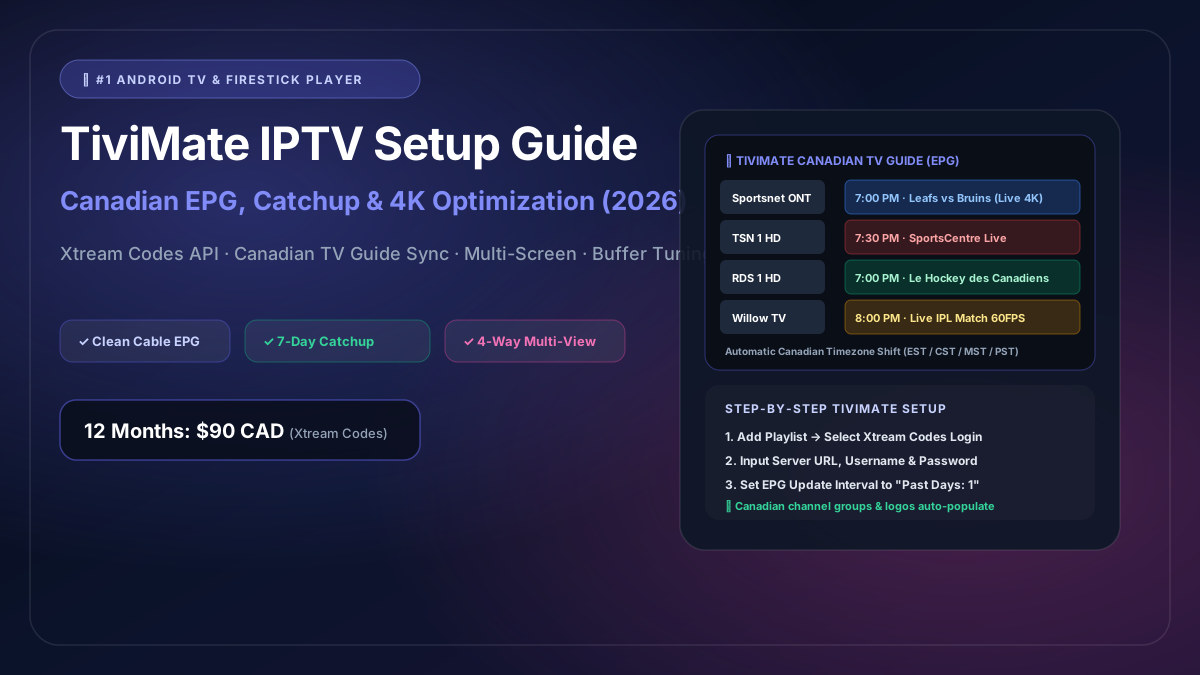
TiviMate IPTV Setup Guide: Configuring Canadian EPG, Catchup & 4K Streams
If you ask any experienced cord-cutter in Canada which application offers the absolute best live television experience on an Amazon Firestick or Android TV, the answer is unanimous: TiviMate.
Unlike mobile-ported apps with clunky touchscreen menus, TiviMate was engineered from the ground up specifically for large television displays and handheld remote controls. Its fluid, cable-style Electronic Program Guide (EPG), rapid channel zapping, and advanced video engine deliver an interface that looks and feels significantly more modern than Rogers Ignite or Bell Fibe TV set-top boxes.
In this definitive Canadian setup guide, we walk you through installing TiviMate on your Firestick or Android TV, configuring your subscription using the Xtream Codes API, tuning Canadian EPG schedules, and enabling multi-screen 4K sports playback.
1. Why TiviMate is the #1 IPTV Player for Canadian Viewers
Before diving into configuration, here is what makes TiviMate the undisputed champion for Canadian households:
- Authentic Cable-Grade TV Guide: Displays channels in an intuitive grid view with program titles, descriptions, episode thumbnails, and progress bars.
- Multi-View Sports Grid: Watch up to 4 live games at once on a single screen—watch the Toronto Maple Leafs, Montreal Canadiens, and an IPL cricket match side-by-side with instantaneous audio switching.
- Sub-Second Channel Zapping: Integrated hardware video caching switches between 4K 60FPS channels in less than 0.6 seconds.
- Canadian Timezone Offset: Easily shift EPG hours for Newfoundland, Atlantic, Eastern, Central, Mountain, or Pacific time zones.
- Catch-up TV & Cloud Recording: Replay sports highlights or prime-time shows that aired over the past 7 days directly from the guide.
2. Step 1: Install TiviMate on Amazon Firestick / Fire TV
Because TiviMate is not hosted on the default Amazon Appstore, we use the trusted Downloader application to install it safely:
- On your Fire TV home screen, go to Find > Search and search for Downloader.
- Install Downloader (the orange icon from AFTVnews).
- Enable developer permissions: Go to Settings > My Fire TV > Developer Options > Install Unknown Apps > toggle Downloader to ON.
- Open Downloader, enter shortcode:
272483(or typehttps://tivimate.com), and click Go. - Once the official APK finishes downloading, click Install, then click Done.
- Delete the temporary installation file to preserve Firestick storage.
(Note for Android TV / Google TV users: You can download TiviMate directly from the Google Play Store on your Sony, TCL, Hisense, or Chromecast device).
3. Step 2: Configure Your Canadian IPTV Playlist (Xtream Codes API)
While TiviMate supports basic M3U playlist URLs, the Xtream Codes API method is vastly superior because it updates channel categories, new VOD movies, and EPG schedules dynamically.
- Launch TiviMate.
- On the welcome screen, select Add Playlist.
- Choose Xtream Codes as the playlist type.
- Enter the credentials sent by IPTV Canada upon activation:
- Server Address:
http://cdn.your-portal-url.com:8080 - Username:
your_username - Password:
your_password
- Server Address:
- Check the box labeled Include VOD (to enable on-demand series and movies).
- Click Next. TiviMate will connect to our Canadian CDN cluster, authenticate your account, and import your channels.
- Click Done to open your brand-new television guide!
4. Step 3: Calibrating the Canadian Electronic Program Guide (EPG)
Canada spans six distinct time zones. Ensuring that your TV guide shows what is currently airing on Sportsnet, TSN, CBC, and TVA requires correct EPG calibration:
1. Set Automatic EPG Update Frequency
- Navigate to Settings > EPG.
- Select Update Interval and set it to Every 24 Hours.
- Enable Update on App Start so your program schedule is always fresh when you turn on your TV.
2. Configure Timezone Offset (Fixing Schedule Mismatches)
If the program guide shows a hockey game starting at 4:00 PM when it actually starts at 7:00 PM:
- In TiviMate, go to Settings > EPG > EPG Sources.
- Select your active EPG source.
- Scroll to Time offset.
- Adjust the offset hours (+1, -1, +3, etc.) until the guide timeline matches your local clock exactly (e.g., Eastern Time EST/EDT or Pacific Time PST/PDT).
5. Step 4: Pro Settings for Canadian Sports & 4K Streaming
To squeeze the absolute maximum performance from your hardware and eliminate any potential buffering during peak hockey and sports moments, apply these settings:
A. Increase Buffer Size (Anti-Jitter Cushion)
- Go to Settings > Playback.
- Select Buffer Size.
- Change it from Normal to Large (or Extra Large if on 100Mbps+ fiber).
- This allocates a 5-second video buffer in memory, absorbing minor Wi-Fi jitter seamlessly.
B. Auto Frame Rate (AFR) Switching
- In Settings > Playback, turn on Auto Frame Rate (AFR).
- Set AFR to match both Resolution and Frame Rate.
- When you click on a 60FPS hockey feed (Sportsnet Ontario 4K), TiviMate instructs your television to switch from standard 24Hz movie mode into native 60Hz sports mode, ensuring razor-sharp puck tracking.
C. Enable Audio Passthrough for Surround Sound
- In Settings > Playback > Audio, set Audio Decoder to Hardware.
- Toggle Passthrough to ON if your Firestick is connected to a soundbar or home theater AV receiver to enjoy full Dolby 5.1 crowd atmosphere.
6. How to Use TiviMate Multi-View (Watch 4 Games at Once)
One of TiviMate’s most jaw-dropping features is Multi-View:
+---------------------------+---------------------------+
|                           |                           |
|   Sportsnet Ontario 4K    |        TSN 1 4K           |
|   Leafs vs. Bruins        |   SportsCentre Live       |
|                           |                           |
+---------------------------+---------------------------+
|                           |                           |
|       RDS 1 HD            |       Willow TV 4K        |
|  Canadiens en Français    |     Live IPL Cricket      |
|                           |                           |
+---------------------------+---------------------------+
How to Activate Multi-View:
- While watching any live channel in full screen, press the Center Select Button on your remote to bring up the player bar.
- Select the Multi-View icon (looks like a grid of four squares).
- The screen will split in half. Click the empty pane, browse your Canadian sports channels, and select your second game.
- Add up to 4 simultaneous channels.
- Use the arrow keys on your remote to highlight any pane and press Select to instantly switch which audio track you are listening to!
TiviMate Settings Summary Checklist
| Setting | Recommended Value | Purpose |
|---|---|---|
| Playlist Type | Xtream Codes API | Enables automatic channel updates & EPG sync |
| Buffer Size | Large / Extra Large | Eliminates micro-stutter on Wi-Fi |
| Auto Frame Rate (AFR) | Enabled | Provides smooth 60FPS motion for Canadian sports |
| EPG Update | Every 24 hours | Keeps TV listings 100% current |
| Timezone Offset | Match your province | Fixes schedule timing across EST, CST, MST, PST |
| Video Decoder | Hardware (HW) | delegates decoding to Firestick GPU to prevent overheating |
Unlock TiviMate’s Full Potential with IPTV Canada
An extraordinary media player like TiviMate requires a lightning-fast, Canadian-optimized stream network to truly shine.
IPTV Canada provides high-bitrate, Canadian-peered streams that connect natively with TiviMate:
- 12 Months Plan (Best Value): $90 CAD (Less than $7.50 CAD/month — complete 4K sports & EPG)
- 6 Months Plan: $50 CAD
- 1 Month Flexible Plan: $13 CAD
Direct payment via secure Canadian Interac e-Transfer. No contracts, no hardware rental fees, and instant 5-minute activation.
Activate your Canadian plan today or reach out to our Canadian support team on WhatsApp for fast, friendly setup guidance!